

The Beauty of Read-Only Fields in ServiceNow – Lessons from Real Work
When I first began working in ServiceNow, I didn’t pay much attention to “read-only” fields. I thought — the more editable a form is, the easier life will be. Big mistake.

One day, a team member changed the requester’s name in an incident record. A week later, the reporting numbers were a mess. Tickets didn’t match owners; SLAs broke, and approvals went missing. That single edit caused days of confusion.
That’s when I really understood why read-only fields exist. They quietly guard your data from being twisted, while still showing everything users need to see.
So, What Is a Read-Only Field Anyway?
In simple words, a read-only field lets you see data but does not change it.
Think of it like a display case: you can look, admire, maybe even analyze — but you can’t reach in.
It’s perfect for things that should stay untouched, like Created on, Updated by, Ticket ID, or Approval status. ServiceNow lets you mark these fields as read-only, so people don’t mess with system-generated values.
You keep visibility but remove risk — and that’s exactly how you build reliable workflows.
Why Read-Only Fields Matter More Than You Think
If you’ve worked with enterprise workflows, you already know — the smallest change in data can mess up hours of automation. One wrong edit can break logic, misfire approvals, and skew reporting accuracy.
Read-only fields stop that chaos before it even starts. They’re not just about “locking things up” — they’re about protecting data integrity.
Without them, your system turns into a free-for-all zone. With them, you get peace of mind knowing that only the system or specific roles can modify sensitive information.
How to Make a Field Read-Only in ServiceNow
There’s no one-size-fits-all method — it depends on what you’re trying to achieve. Over time, I’ve used several approaches, each with its own perks:
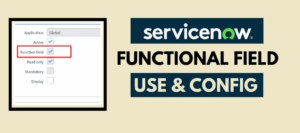
Dictionary Level:
This is the simplest way. Open the field dictionary record, check “Read-only,” save, and done. It applies everywhere — system-wide. It’s clean but not flexible.
UI Policy:
My personal favorite. You can make fields read-only based on conditions. For example, make “Assigned to” read-only when the ticket is closed.
This gives you control that feels natural — fields unlock or lock as workflows change.
Client Script:
Developers love this one. You can write a simple script like:
g_form.setReadOnly(‘field_name’, true);
It’s great when you want to control field behavior dynamically — maybe based on user roles or actions.
Access Control (ACL):
This one is for tight security. You can define exactly who can read or write to a field. It’s the backbone of data protection in ServiceNow, especially for confidential modules.
Each method has its place — you just must choose wisely based on how flexible or strict you want the rule to be.
A Small Real Example from My Own Work
In one project, we were automating employee exit workflows. There was a field named “Final Clearance Date”. It was supposed to be generated automatically once the HR completed the checklist.
But some HR reps, trying to help, kept editing it manually to “speed up” the process. The problem? That field triggered payroll closure and email deactivation. You can imagine the disaster.
So, we made that field read-only using a UI Policy — editable only until HR approval. It worked like magic. No more wrong deactivations, no confusion, no delays.
That’s when I realized — it’s not just about control. It’s about protecting people from making innocent mistakes.
My Personal Tips for Using Read-Only Fields Smartly
Over the years, I’ve learned that art isn’t just making fields read-only — it’s knowing when to do it. Here’s what works:
- Don’t overuse it. Lock only what truly needs locking. Too many restrictions make forms frustrating.
- Document your choices. Leave a note or comment explaining why you locked that field.
- Test across roles. A rule that works for one user might block another. Always test.
- Combine rules smartly. Use UI Policy for flexibility and ACL for security.
- Explain changes to users. People cooperate better when they know why something is restricted.
A little transparency goes a long way.
The Balance Between Control and Freedom
There’s always a tug-of-war between data protection and user convenience.
If you make too much read-only, users feel limited. If you make too little, your data becomes unreliable.
The real skill lies in striking a balance — giving people the freedom to do their work while ensuring the system stays accurate.
The best ServiceNow configurations are the ones that “feel natural.” Users don’t even notice that certain fields are locked because the design itself makes sense.

Real Impact of Getting It Right
A well-placed read-only field can save you hours of troubleshooting, stop audit errors, and maintain clean, trustworthy data across modules.
The beauty of it is that it doesn’t shout for attention — it just quietly keeps things running smoothly behind the curtain. And when you think about it, that’s what good system design is all about: invisible reliability.
Final Thoughts
When you build or customize forms in ServiceNow, you’re not just designing data entry screens — you’re shaping how people interact with your system.
Read-only fields may look small and technical, but they carry real power. They maintain honesty in your data, prevent human errors, and keep workflows safe.
So next time you’re designing a form, take a second look. Ask yourself:

“Does this field really need to be editable?”
If not, lock it. You’ll thank yourself later — and your system will quietly thank you too.





No comment