

Slush Bucket in ServiceNow: The Unsung Hero of User Selection
If you’ve ever configured a form or created a custom UI in ServiceNow, chances are you’ve come across a strange-looking box with two lists and some arrow buttons in between. That’s right — the slush bucket.
At first glance, it looks simply, almost old-fashioned. But this little component is far more powerful than it seems. In fact, the slush bucket plays a quiet yet essential role in how users select and manage data across the platform.
Let’s take a deep, human look into what a slush bucket really is, how it works, why it exists, and when you should — or shouldn’t — use it.
What Exactly Is a Slush Bucket?
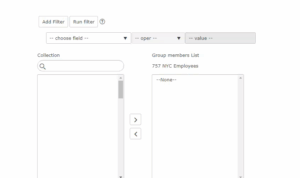
In ServiceNow, a slush bucket is a dual-list UI element used to move items from one list to another. Typically, you’ll see it when configuring related records, assigning users to roles, or managing group memberships.
Think of it like this:
- The left box (Available list) shows all items that could be selected.
- The right box (Selected list) shows the items that are currently selected.
- The middle arrows let you move items back and forth between these two lists.
It’s an elegant and simple way to manage multiple selections without overwhelming the user interface. Whether you’re choosing which users belong to a group or deciding which categories a knowledge article should belong to, the slush bucket gives you full control.
Why It’s Called a “Slush Bucket”
Now, here’s a fun fact — the term slush bucket didn’t start with ServiceNow. It’s an old programming term that dates to early user interface design. It referred to any container that temporarily “held” a collection of data before it was finalized.
When ServiceNow adopted this concept, it kept the quirky name — and it was stuck!
So while it might sound like something from a snowstorm, in the ServiceNow world, it’s just a neat way to organize selections.
Where You’ll Find the Slush Bucket in ServiceNow
You’ll encounter slush buckets in several parts of ServiceNow, especially in system administration and configuration tasks. Some common examples include:
- User and Group Administration:
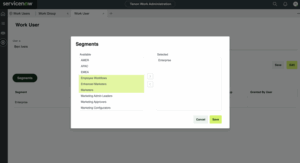
When you’re adding users to a group or assigning roles, the slush bucket lets you pick from a list of available users on the left and move them to the selected list on the right. - Access Control Lists (ACLs):
When setting up access permissions, you may see a slush bucket used to define which roles or users can access a particular resource. - UI Policies and Business Rules:
In some cases, the slush bucket is used to define which fields or tables a rule applies to. - Notifications and Subscriptions:
You can use it to choose who should receive email notifications or updates on certain events.
Essentially, anywhere you need to manage multiple selections in a clean, user-friendly way, you’ll probably see the slush bucket.
How the Slush Bucket Works (Behind the Scenes)
Under the hood, the slush bucket is powered by HTML and JavaScript, integrated with ServiceNow’s GlideForm and GlideRecord APIs.
It dynamically loads data from the database (for example, a list of users or roles) and displays them in two separate containers.
When you move an item from one list to another:
- The system records that change temporarily on the client side.
- Once you click Save or Update, those selections are written to the database.
It’s a simple but effective mechanism that ensures the UI remains responsive while handling large datasets efficiently.
From a developer’s point of view, the slush bucket is a time-saver — you don’t need to code a multi-select UI from scratch. And for administrators, it’s a visual, no-code way to manage data relationships.
Real-Life Example: Assigning Roles to a User
Let’s take a practical scenario.
Suppose you’re in User Administration, editing a user record named “Sarah Ahmed.”
Under the “Roles” tab, you’ll see a slush bucket with two lists:
- On the left: All available roles (like itil, admin, catalog_admin, etc.)
- On the right: Roles already assigned to Sarah.
If you want to give Sarah additional access, you simply select “ITIL” from the left and click the right arrow.
Boom — she now has the ITIL role.
If you want to remove a role, select it on the right and click the left arrow.
That’s it. No scripts, no SQL, no backend configuration — just clean, simple interaction.
Why ServiceNow Still Uses It
In a world of sleek, modern interfaces, you might wonder: Why does ServiceNow still use such a traditional-looking component?
The answer is — because it works.
The slush bucket is lightweight, fast, and universally understood by admins. It doesn’t rely on heavy front-end frameworks or fancy animations, which means it performs well even on slower systems.
And more importantly, it’s intuitive. Anyone, even without technical expertise, can understand what it does within seconds. That simplicity is what makes it timeless.
Slush Bucket vs. Reference Fields
A common confusion among new ServiceNow users is when to use a slush bucket and when to use a reference field.
Here’s a simple distinction:
- Reference Field: Used when selecting a single related record (for example, choosing one user as an “Assigned To” person).
- Slush Bucket: Used when selecting multiple related records (like assigning multiple roles to one user).
Both have their purpose, but when you need multi-selection, the slush bucket wins every time.
Customizing the Slush Bucket
ServiceNow also allows developers to customize slush buckets to fit specific use cases. You can:
- Filter which items appear in the Available list using scripts.
- Control the display order of items.
- Add search filters or custom labels.
- Modify which fields are displayed within the list.
For example, if you’re building a custom app that assigns multiple assets to a department, you could create a slush bucket that only shows active assets from a certain category.
This makes data selection cleaner and reduces human error.
Pro Tips for Working with Slush Buckets
- Use Filters Wisely: Limit what appears in the available list — this improves performance and user experience.
- Avoid Overloading: Don’t use a slush bucket with tens of thousands of records; it’s better to add filtering or pagination.
- Document Changes: If you customize it, always document your logic for future admins.
- Combine with UI Policies: You can enable or disable the slush bucket based on conditions to make your forms smarter.
The Future of the Slush Bucket
While ServiceNow continues to modernize its UI with components like the UI Builder and Next Experience, the slush bucket remains a reliable tool — a quiet workhorse that gets the job done.
It might not be flashy, but it perfectly embodies one of ServiceNow’s guiding principles: make complex things simple.
We may eventually see a more modern, drag-and-drop version of it, but its spirit — giving users control over their data selection — will always remain part of the platform’s DNA.
Final Thoughts
The slush bucket might not make headlines in the ServiceNow world, but it’s a perfect example of thoughtful design. It’s simple, practical, and built to solve a real problem — managing multiple selections easily and visually.
Whether you’re a new admin assigning roles or a developer building custom relationships, understanding how the slush bucket works will make your ServiceNow life smoother and smarter.
It’s a small feature with a big impact — the kind that quietly keeps workflows running efficiently behind the scenes.
So next time you see that dual-list box with arrows in between, don’t underestimate it. That’s not just an old UI element — that’s a piece of ServiceNow history still doing its job perfectly.




No comment